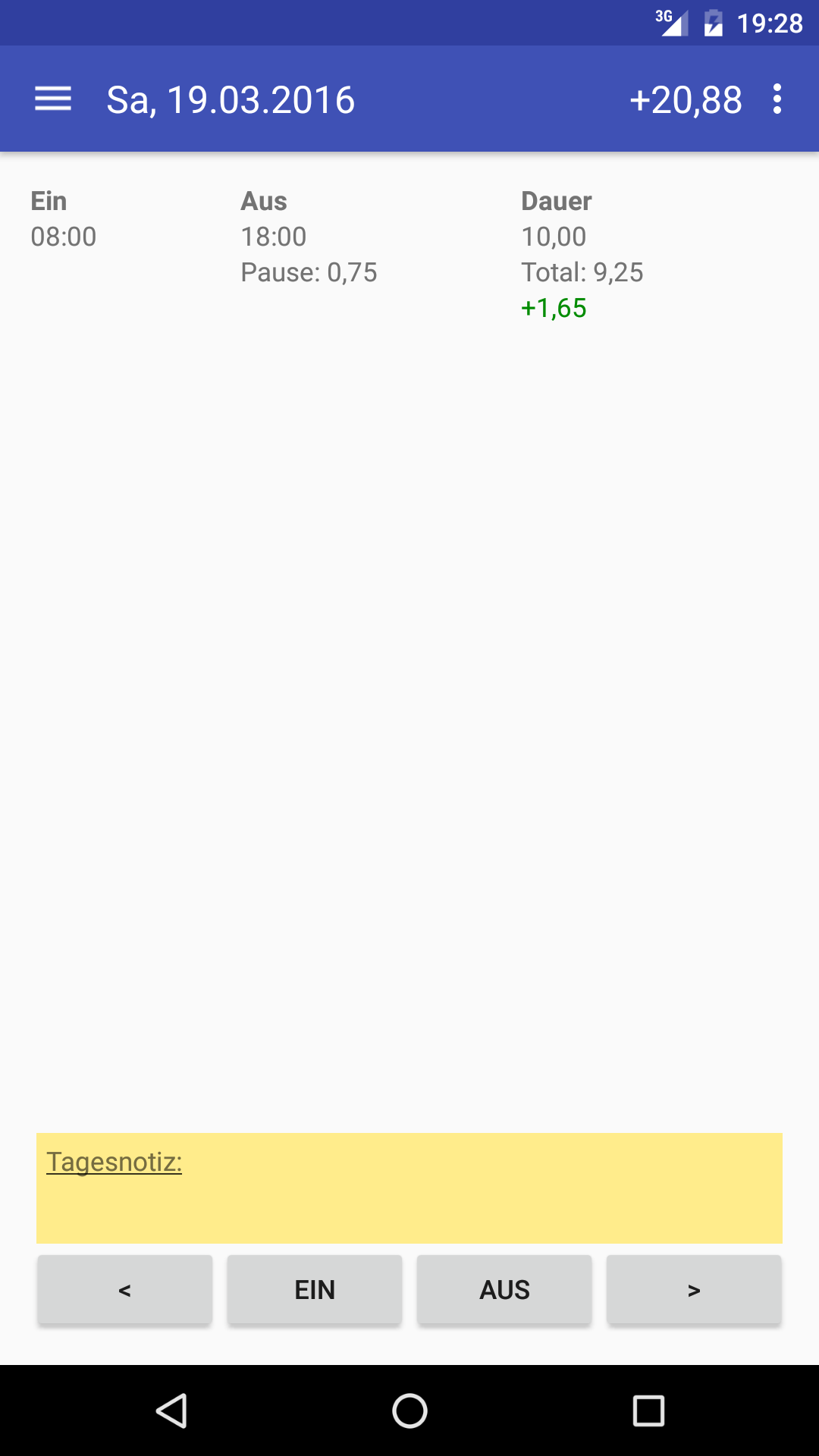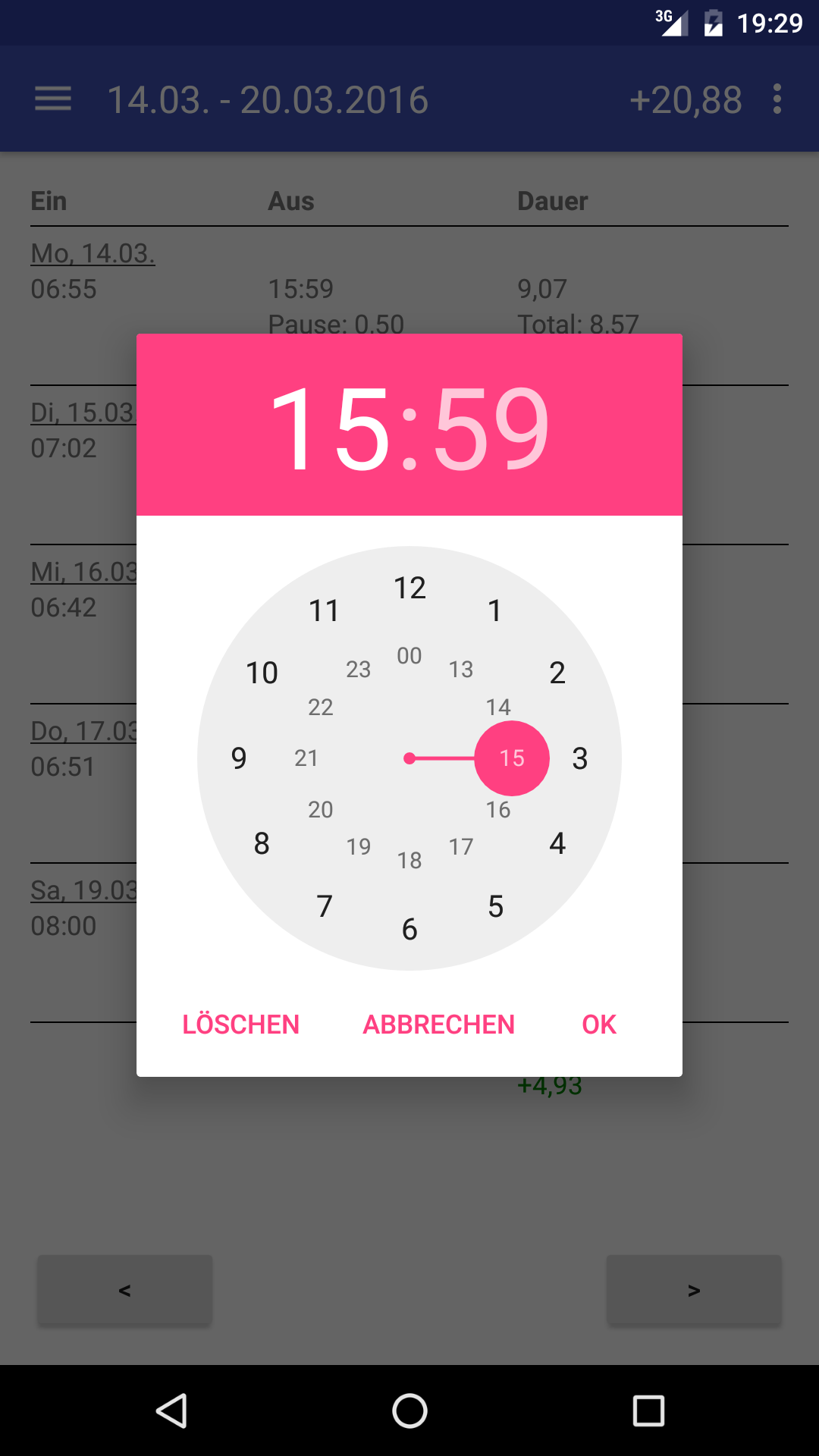
ZEapp is a simple time-tracking app that lets you record your working hours.
Features
- Daily, weekly, and monthly view
- Automatic calculation of overtime
- Manual entries
- Clock-in widget for quick clocking in/out directly from the home screen
- Tasker plugin – enables automated clock-in/out via the Tasker app
- Flexibly customizable break rules
- Report generation (CSV, HTML)
- Database import/export
- Language selection: English / German
Premium Features (in-app purchase)
- Notification when clocked in
- Choice of weekly or monthly balance display
- Alarm when target time is reached
- Alarm when maximum working time is reached
- Remaining vacation calculation
- Automatic backup
Permissions
ZEapp – Time Tracking requires storage write permission to back up the database and generate reports. If you deny this permission to the app, neither function will work.
Reports
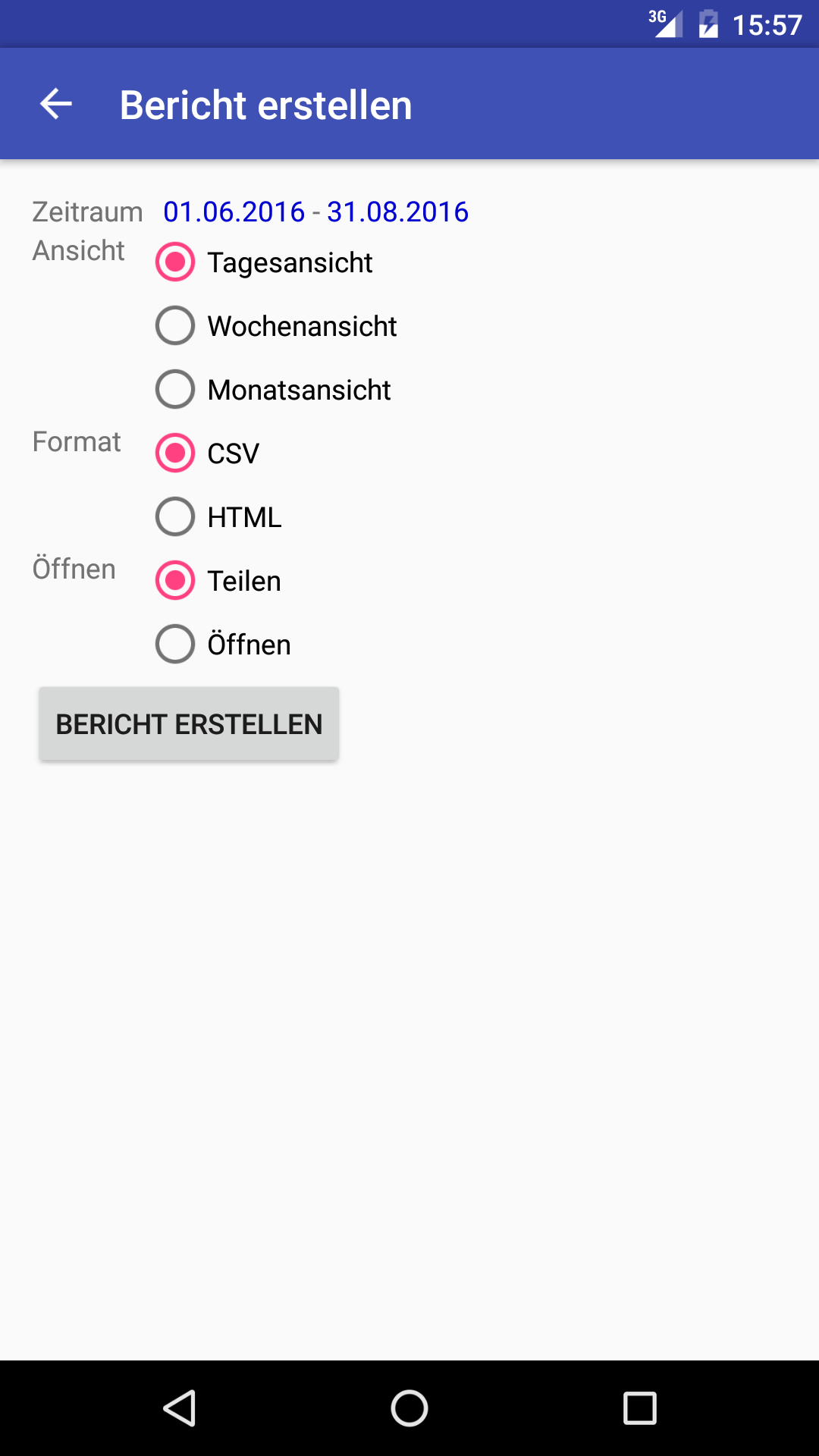
This menu item lets you generate various reports about your working hours.
First, select the time period, then the report type and the format you want. In the last step, choose whether to share the generated file (e.g., send it by email) or open it directly on the device.
Widget
The ZEapp widget lets you easily clock in and out from the home screen. While clocked in, the widget displays the "clock-in" time and the calculated target time.
Settings
Working Hours
- Initial value in hours / decimal – indicates the number of overtime/undertime hours that existed at the start of using the app; for the overall overtime calculation to work correctly, the first week must be fully clocked
- Calculate missing days – if enabled, days that were not clocked (e.g., forgot to clock in/out) are deducted from the total time balance; deductions only apply to past days
- Start of week – beginning of the week; the selection affects the weekly overview display and the weekly working-time calculation
- Working hours input – choose whether target working time should be entered per day or per week
- Weekly hours – number of hours to be worked per week
- Working days – days on which you work; daily working time depends on this (weekly hours divided by working days per week)
- Monday – Sunday – number of working hours per day, decimal
Breaks
- Clock breaks? – if you clock out during daily working hours, this time is deducted from the break time
- Break duration 1 in hours, decimal – first break in hours (0.5 hours equals 30 minutes)
- Break duration 2 in hours, decimal – second break in hours (0.25 hours equals 15 minutes)
- Break 1 after x hours – the first break starts after x hours of working time
- Break 2 after x hours – the second break starts after x hours of working time (the first break does not count as working time, meaning the 2nd break starts after x hours + the duration of the first break)
Vacation
- Vacation days per year – vacation days per calendar year
- Calculate remaining vacation – if you take fewer vacation days than specified in the current year, the remaining days will be shown as additional vacation days in the following year
- Vacation days in the first year – to correctly calculate remaining vacation, you must specify how many vacation days were available in the first year (since you started using the app)
- Vacation correction – if more or fewer vacation days are available in a given year, you can make the adjustment here
- Edit adjustment – adjustments can be viewed and deleted here
Display
- Display format – choose whether calculated times are shown as decimal values or as actual minutes (0.5 hours equals 0 hours : 30 minutes)
- Show total plus/minus – choose whether the total calculated overtime is shown in the title bar; this affects app startup time, since the calculation requires processing time depending on the amount of data entered
- Display always on – lets you specify whether the display stays on continuously on the main screen
- Show notes – lets you specify whether daily notes are shown in the weekly and monthly view
- Special days display – choose which special days should be calculated and shown in the side menu
- Change language – here you can change the app's language; the default is the phone's language, or English if that language is not supported
Database
- Export database – here you can export the database; depending on the apps installed, various export options will be shown, e.g., Gmail, Google Drive, etc.
- Import database – select the .db file from local storage or the SD card
- Reset database – here you have the option to reset the database if needed
- Automatic backup – an automatic backup is written each time you clock out; the last 10 versions are saved. You can find the backup under /sdcard/ZEapp/AutoBackup